Introduction to BASH
A tour of command line navigation and 100 BASH commands.
Content developed by Kristine Lacek
Module Objectives
- Define fundamental terminal definitions, present 100 essential bash command encyclopedia
- Enable you to confidently:
- Move between directories, list files, and manage folder structures
- Create, copy, move, rename, delete, and view files
- Search, filter, and transform text files (samplesheets, FASTAs, FASTQs) using key utilities such as
grep,sed, andwc - Perform administrative tasks, set file permissions, and interact with remote systems or network resources
Practical Component
Module will alternate between lecture and practice. Practical materials available at https://cdcgov.github.io/id-bioifx-workshop/
Command Line Navigation: Review
- Command prompt: Text displayed by the shell indicating it is ready to accept a command
- Directory: Folder
- Path: Exact location of a file or directory in the filesystem
pwd: Print Working Directory — show where in the filesystem you are


Flags, Arguments, and Options
- Flag (or option): A modifier added to a command (often starting with
-or--) that changes how the command behaves - Defaults: Settings for the program if user provides no modifier
- Argument: Additional information provided to a command, such as a filename, directory name, or value to operate on
Types of Arguments
Positional arguments: Arguments defined by order
cp file.txt backup.txt
file.txtis the 1st positional argument (source)backup.txtis the 2nd positional argument (destination)- Switching the order changes the behavior
Binary (Boolean) flags: Flag is either ON (present) or OFF (absent)
ls -l
-lenables long listing mode, no value required
Argument (Value) flags: Requires a value after it
head –n 5 file.txt
-n: flag5: value
Manuals and Help
- Command: Program
- Difficult for anyone to remember exactly how to use every program on a system
- There are programs that help you use programs!
man— full manual pages--help— quick flag reference
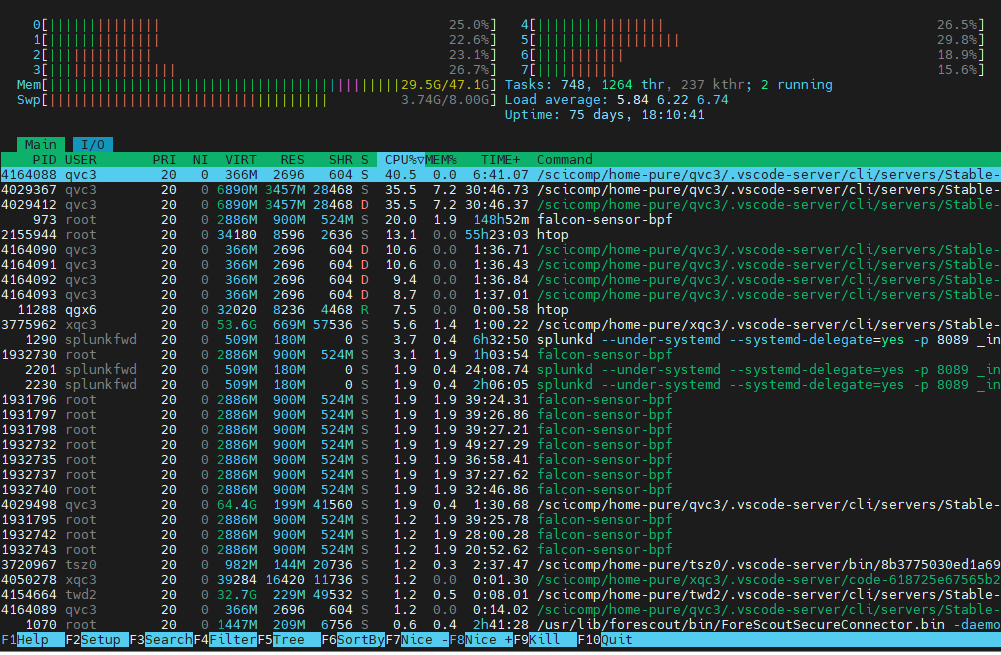
Command Line Navigation: Moving in the Filesystem
| Command | Description |
|---|---|
ls |
List directory contents |
cd |
Change directory |
mkdir |
Create directory |
rmdir |
Remove an empty directory |
tree |
Show directory structure |

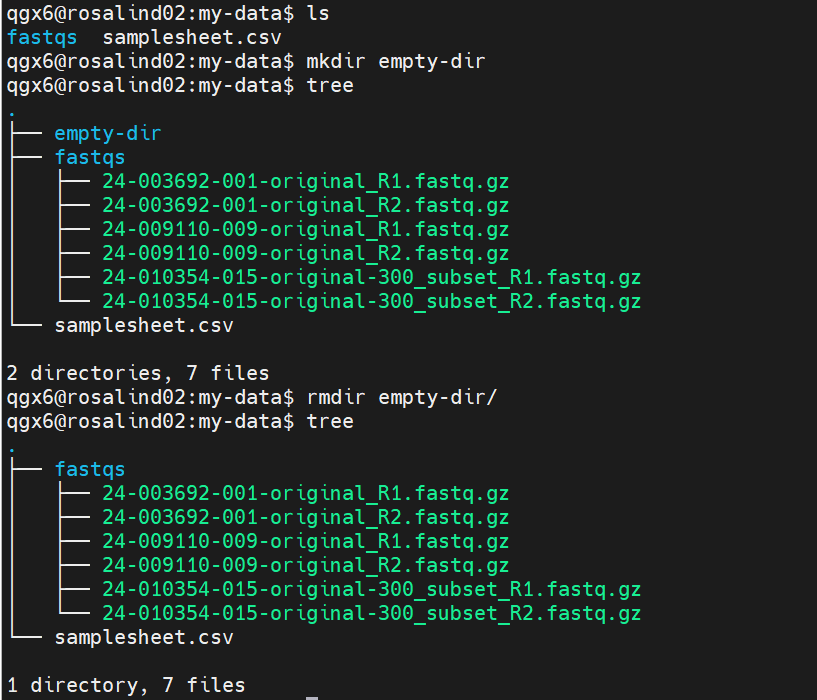
Special Symbols
| Symbol | Meaning |
|---|---|
~ |
Home directory |
. |
Current location |
.. |
“Back” or “up” a directory |
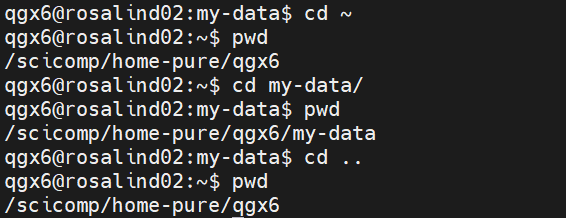
BASH Tips
- Tab-complete: The shell will try to “guess” what you’re typing next if it’s an existing filename or directory. Hit Tab to complete the full name for faster navigation.
- History: The shell remembers everything you run in your “history” — use the up arrow to go back in history.
cd –: Go to the last directory you were in (not necessarily relative to your cwd).
Relative Paths vs Absolute Paths
Absolute Path:
- Full path from the root directory (
/) - Always starts with
/ - Works regardless of current location
- Example:
/home/user/project/data/sample.fastq
Relative Path:
- Path relative to your current directory
- Does NOT start with
/ - Depends on where you are (
pwd) - Example:
data/sample.fastq
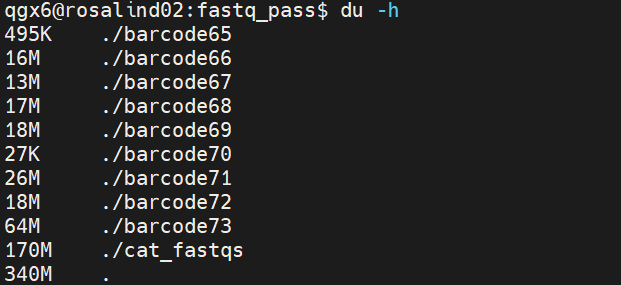
Intermediate Directory Management
du: Disk usage summary (-hflag suggested)df: Display disk space usage for all file-systems mounted by OS
Command Line Special Symbols & Shorthand
Directories and Pathing
Builtins include special symbols and words that are reserved. Type help to see the full list.
| Symbol | Meaning |
|---|---|
~ |
Home directory |
. |
Current location |
.. |
“Back” or “up” a directory |
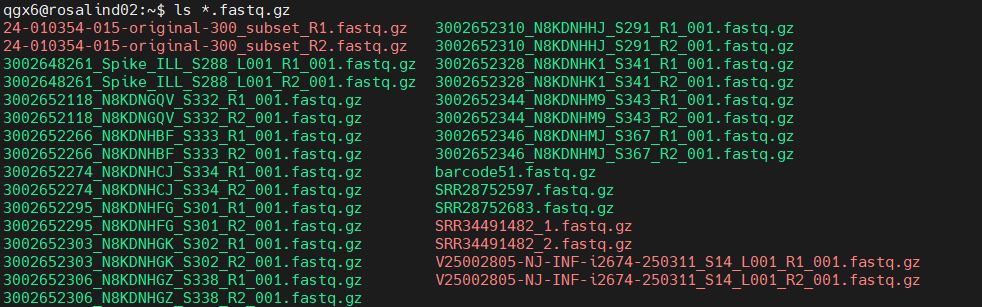
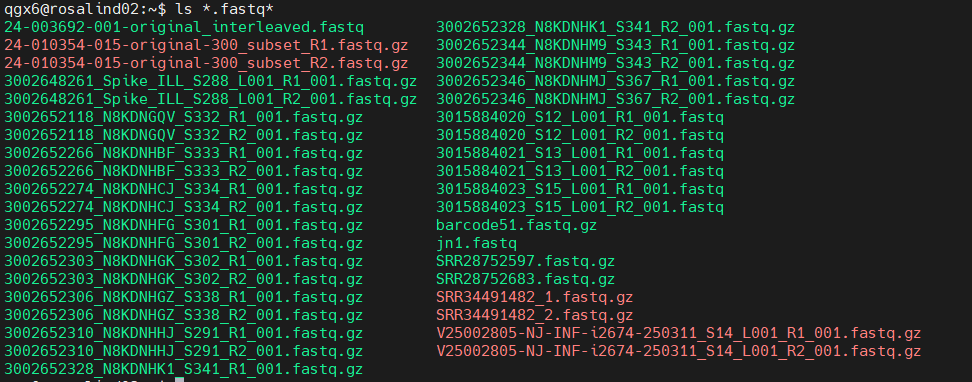
* |
Glob — matches any characters (can represent nothing as well) |
Input and Output Operators
| Operator | Meaning |
|---|---|
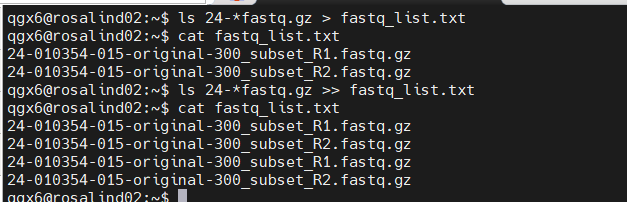
> |
Send command output to a file (new or overwrite) |
>> |
Append or add command output to a file |
< |
Send multiple inputs to a command from a file |
| |
Pipe — send output from one command to input of another |

Other Special Characters
| Symbol | Meaning |
|---|---|
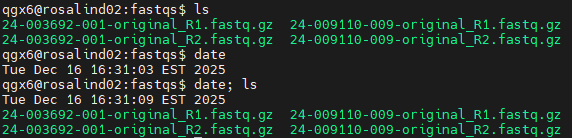
; |
Separate multiple commands on a single line |
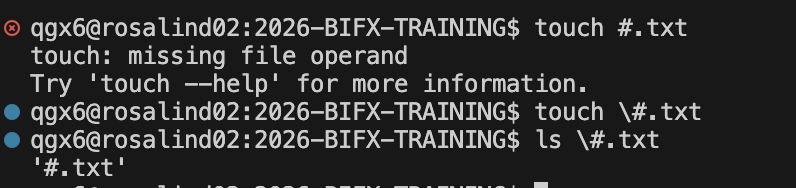
# |
Comment — ignore to the end of line |
Special Characters in Text Files
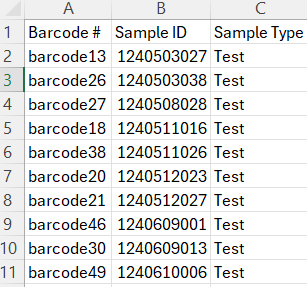
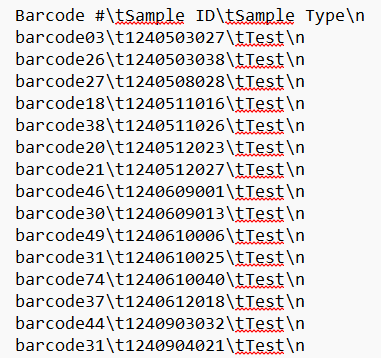
\t= tab character in a textfile\n= newline character in a textfile
File Viewing and Manipulation
Viewing Files
| Command | Description |
|---|---|
cat |
Display file contents |
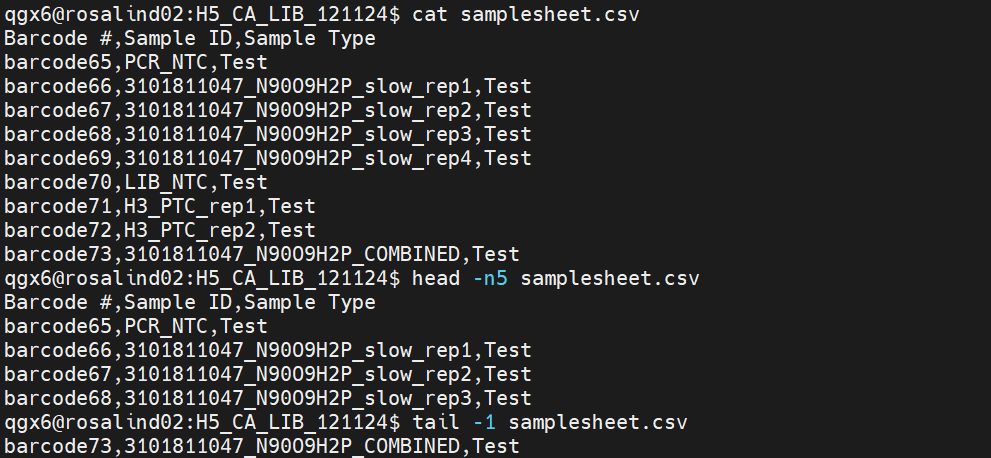
head |
Show first 10 lines of file (change with -n flag or -#) |
tail |
Show last 10 lines of file (change with -n flag or -#) |
vim |
Open text editor |
less |
View file content interactively |
Sorting
| Command | Description |
|---|---|
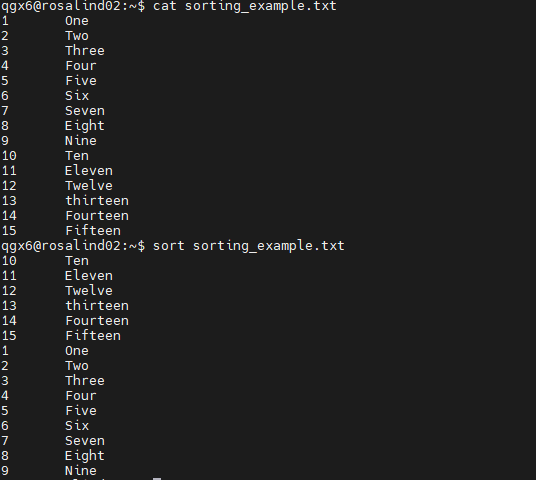
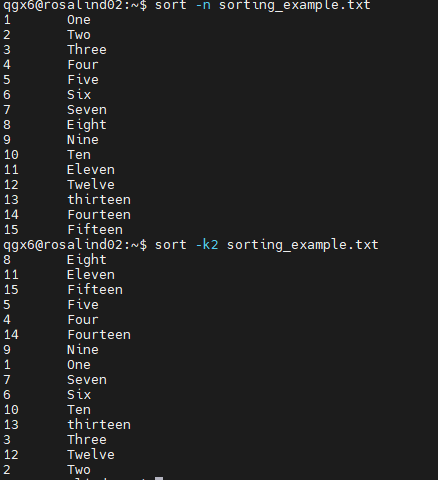
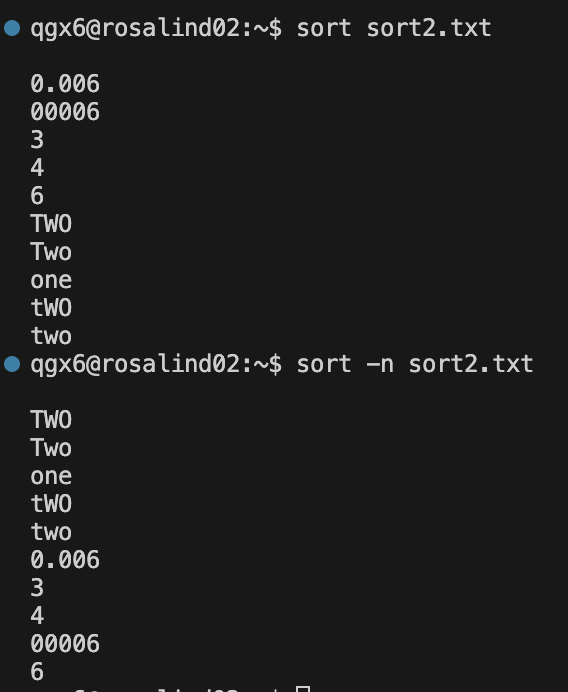
sort |
Sort lines in a file |
- Defaults to first column or field, sorting alphabetically
-ntells the command to sort numerically-k 4tells command to sort according to the fourth field-d ,tells command to divide fields according to “,”
Piping
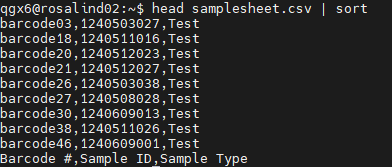
| = Pipe, or send output from one command to input of another command.
Caution: Not all commands accept stdin.
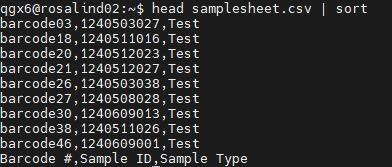
Sort the first 10 lines of a file:
head samplesheet.csv | sort
Sort a file then output the first 5 entries alphabetically:
sort samplesheet.csv | head -5

Copying, Moving, and Deleting
| Command | Description |
|---|---|
cp |
Copy files or directories (use -R flag for directories) |
mv |
Move or rename files |
rm |
Remove files or directories — CAUTION: This is permanent deletion |
touch |
Create an empty file |


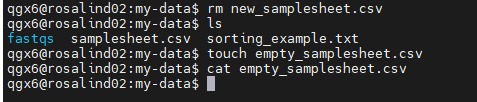

To remove a directory AND everything in it, use the recursive flag:
rm –r directory

Network and Downloads (Part 1)
| Command | Description |
|---|---|
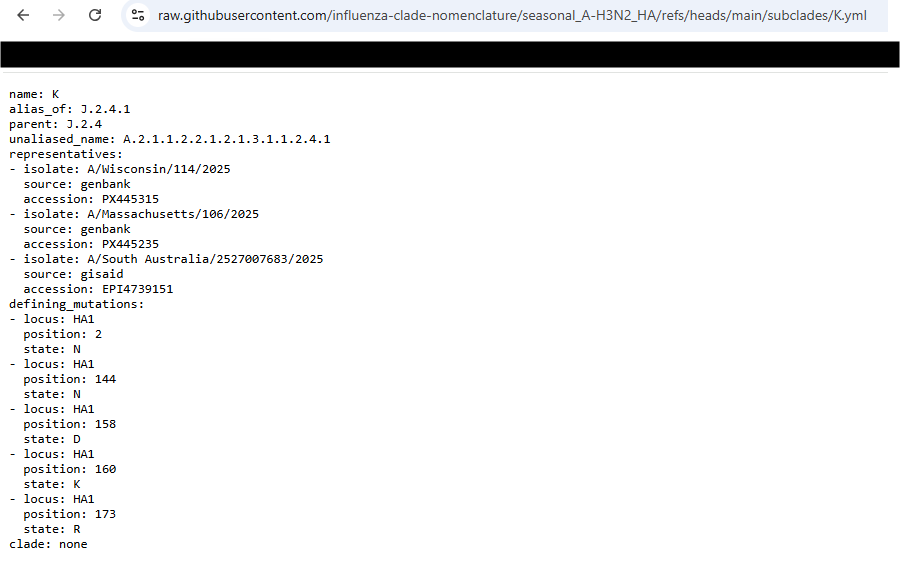
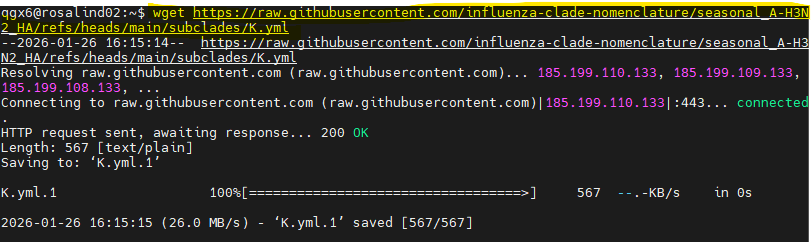
wget |
Download files from the web |
curl |
Transfer data to/from URLs |
wgetwill pull the file;curlwill pull the contents- Use a redirect (
>or>>) withcurl
Searching and Text Processing
wc, cut, uniq
| Command | Description |
|---|---|
wc |
Count lines, words, and bytes |
cut |
Remove sections from lines |
uniq |
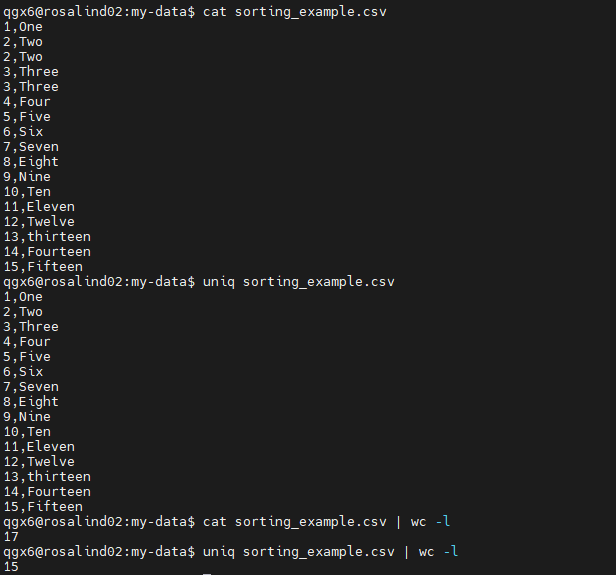
Report or filter duplicate lines |
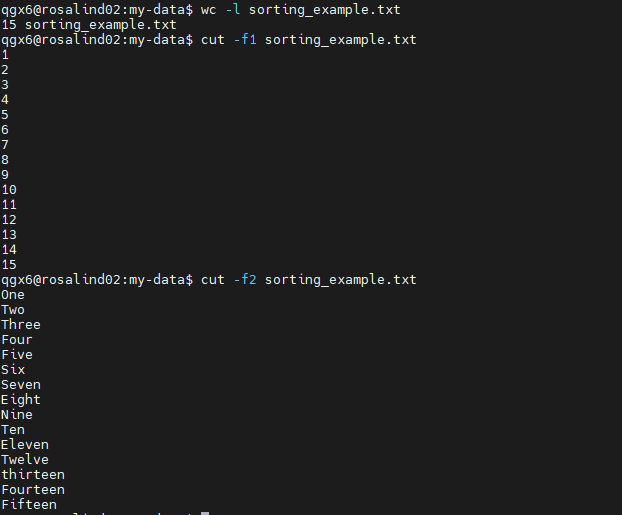
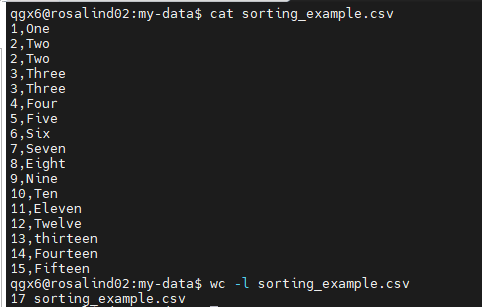
- Cutting by field may not work unless you provide a delimiter (
-d) - Piping
cutintosortanduniqgives unique values only
grep — Search for Text in Files
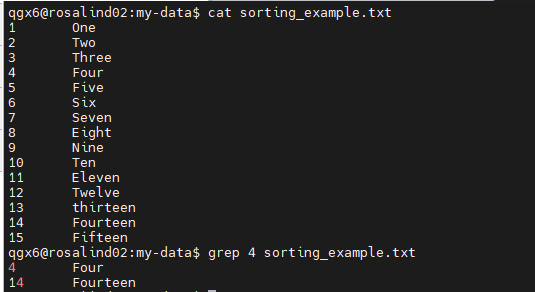
grepis case sensitive unless you use-i- Any text is searchable — does not have to match the entire word


Most Useful grep Flags:
| Flag | Description |
|---|---|
-v |
Invert match — shows lines that do NOT match |
-i |
Ignore case |
-r |
Recursive search — searches all files in a directory tree |
-n |
Show line numbers for each match |
-c |
Count matches — outputs the number of matching lines |
Remember: Flags can be combined!
grep -i –v –cwill ignore case AND invert match and count matches.

sed — Stream Editor for Find/Replace
Stream mode (output to stdout):
sed -s "s/find/replace/g" <file>
- Sends replaced line to output stream, can pipe (
|) or redirect (>,>>) g= “global”, replaces all matches
In-place mode (modifies file directly):
sed -i "s/find/replace/g" <file>
- Be careful! Not easy to undo if you make a mistake
- TIP: Add
-i .bakto copy the original file tooriginal.bakfirst
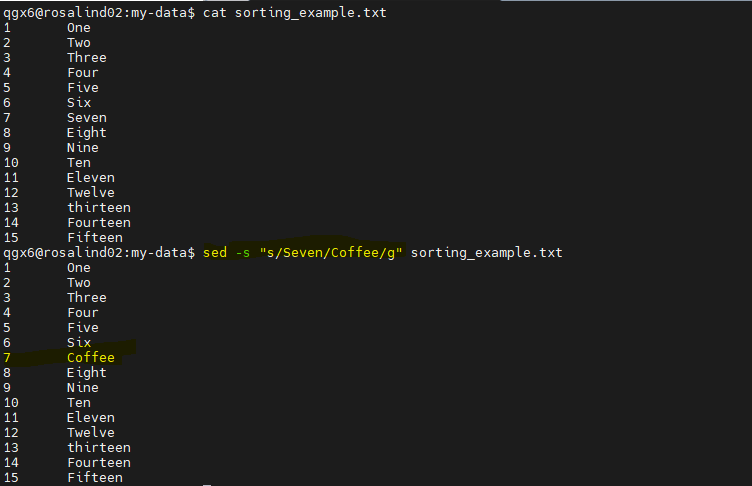
sed is very powerful and it is easy to make inadvertent changes.
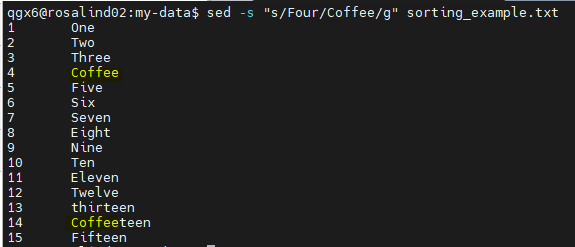
Special character example: TSV to CSV
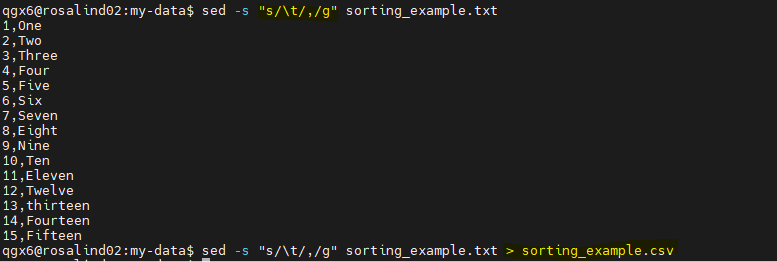
What if the string you want to find or replace has a / in it?
You don’t have to use / to pass your sed command:
sed -s "s%find%replace%g"
sed -s "s&find&replace&g"
Regular Expressions (Regex)
Regular expressions are pattern matching tools used by grep, sed, and other text editors to find and extract text in strings and files.
Most Important Symbols:
| Symbol | Meaning |
|---|---|
. |
Any character |
* |
Previous character zero or more times |
\+ |
Previous character one or more times |
[] |
Character sets |

Intermediate Regex (egrep or grep –e)
| Concept | Syntax | Example |
|---|---|---|
| Anchors | ^ start, $ end |
^ERROR — lines starting with “ERROR” |
| Character classes | [abc], [0-9] |
user[0-9]+ — user1, user42 |
| Quantifiers | * (0+), + (1+), {n} (exact) |
.{8,} — at least 8 characters |
| Alternation (OR) | \| |
error\|fail\|critical |
| Escaping | \. literal dot, \* literal asterisk |
\d+\.\d+ — decimal numbers |
www.regex101.com is a great resource for checking and testing regex.


Intermediate Text Processing
| Command | Description |
|---|---|
diff |
Compare files line by line |
comm |
Compare sorted files |
tr |
Translate or delete characters |
xargs |
Build and execute command lines |
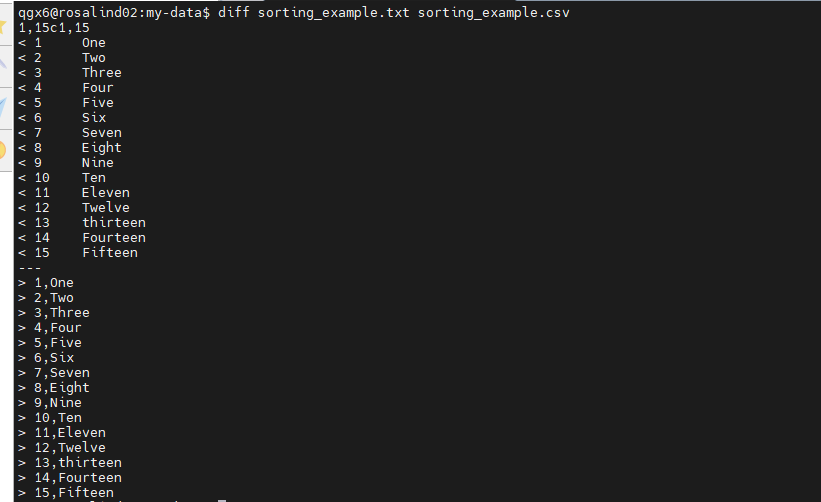
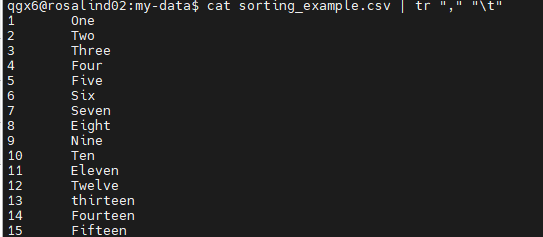
Putting It All Together: Real World Example
Need a “sample_type” column — replace (sed) end of line ($) with ,Test:


Networking and Downloads (Part 2)
| Command | Description |
|---|---|
ping |
Check network connection |
ssh |
Connect to remote server |
scp |
Copy files via SSH from one server to another |
host |
DNS lookup utility |
ftp |
File transfer protocol client |


Compression and Archives
Why Compress?
- NGS generates very large files — raw data (e.g., FASTQ, BAM) can quickly reach GB–TB scale
- Compressed files are faster to transfer — reduced size improves download, upload, and sharing speed
- Best practice for long-term storage — saves disk space and lowers storage and backup costs
Common Formats
| Format | Description |
|---|---|
| Tarballs (.tar) | Bundles multiple files into a single archive (no compression by itself) |
| Gzip (.gz) | Common for FASTQ files; fast compression/decompression |
| Zip archives (.zip) | Widely supported; combines archiving and compression |
| Compressed tar (.tar.gz) | Archive multiple files and compress them in one step. Common for distributing sequencing datasets |
Compression Commands
| Create / Compress | Extract / Decompress |
|---|---|
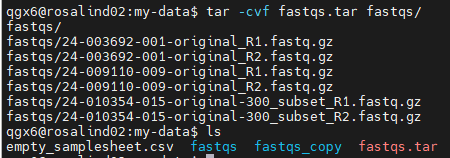
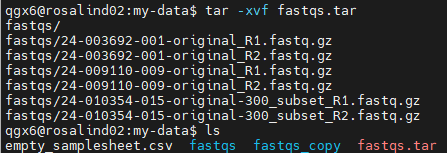
tar –c : Create archives |
tar –x : Extract archives |
gzip : Compress files |
gunzip : Decompress gzip files |
zip : Create zip archives |
unzip : Extract zip archives |
zcat : View compressed files |
Examples
gzip/pigz(parallel gzip for many files)


tararchive and extract:
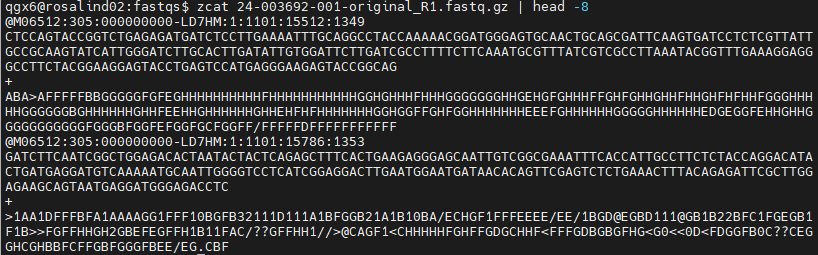
zcat— view compressed contents without uncompressing:


Permissions and Ownership
Core Concepts
- Ownership defines control — each file has a user (owner) and group assigned to it
- Permissions control access — Read (r), Write (w), and Execute (x)
- Three permission levels — apply separately to owner, group, and others

Managing Permissions
| Command | Description |
|---|---|
ls -l |
View permissions (owner, group, others: -rwx) |
chmod |
Change permissions (letters or numbers) |
chown |
Change ownership |
Numeric Permissions:
| Value | Permission |
|---|---|
r = 4 |
Read |
w = 2 |
Write |
x = 1 |
Execute |
Add values to set permissions:
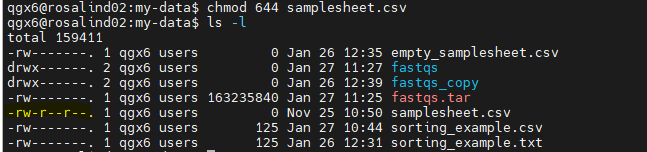
7 = 4+2+1(rwx)6 = 4+2(rw-)5 = 4+1(r-x)-rw-r--r--→644— Owner: read/write, Group & others: read
Intermediate Permissions and Ownership
| Command | Description |
|---|---|
chgrp |
Change group ownership |
sudo |
Run command as superuser |
umask |
Set default file permissions |
id |
Display user identity |
whoami |
Show current user |
groups |
Show group memberships |
passwd |
Change user password |
su |
Switch user |
System Info & Process Management
| Command | Description |
|---|---|
top |
Display running processes (htop for enhanced view) |
ps |
Report current processes |
kill |
Terminate processes |
pkill |
Kill by process name |
jobs |
List active jobs |
Ever need to cancel what you just ran? Ctrl + C