Content developed by Ben Rambo-Martin and Kristine Lacek
Prerequisites
1.1 Check your Windows version
Select ⊞ Win + R, type winver, and click OK.
Update via Start → Settings → Windows Update → Check for updates if needed.
1.2 What is WSL?
WSL (Windows Subsystem for Linux) lets you run a full Linux environment directly on Windows without a virtual machine or dual-boot setup. WSL2 is the recommended version — it uses a real Linux kernel and offers full system-call compatibility.
Key benefits:
- Run Linux command-line tools (bash, grep, sed, awk, etc.)
- Install and run bioinformatics software natively
- Access the Windows filesystem from Linux and vice-versa
Install WSL2 and Ubuntu
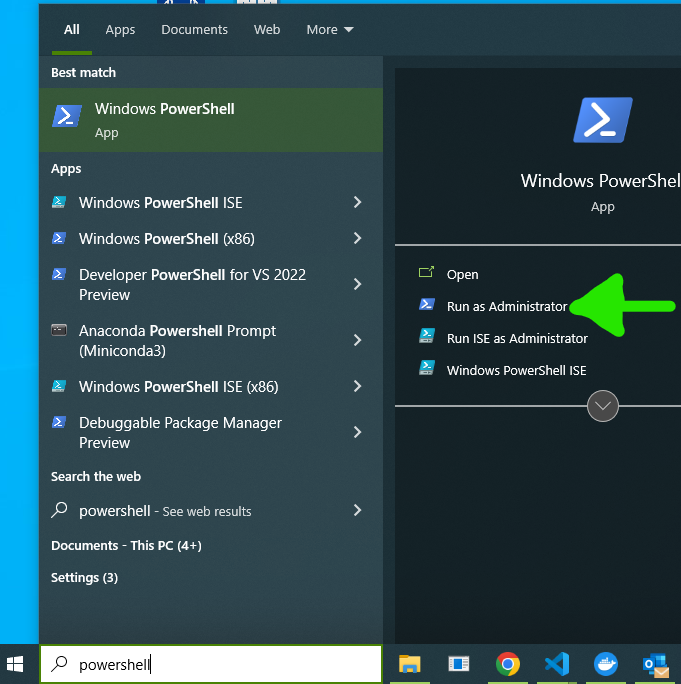
2.1 Open PowerShell as Administrator
Right-click the Start button and select Windows PowerShell (Admin) or Terminal (Admin).
2.2 Install WSL
Run the following command in PowerShell:
wsl --install2.3 Restart your computer
Restart now before continuing to the next step.
2.4 Install Ubuntu 20.04
Reopen PowerShell as Administrator and run:
wsl --set-default-version 2
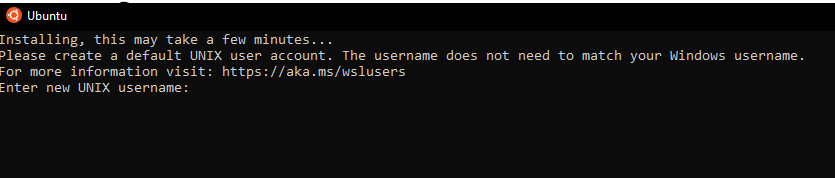
wsl --install -d Ubuntu-20.04An Ubuntu terminal should open automatically:
User Account Setup
3.1 Create your WSL user account
When the Ubuntu terminal opens for the first time:
- Enter a username (exclusive to WSL) and press Enter.
- Enter a password and press Enter.
A prompt will appear similar to:

where nbx0 is replaced by your username and L349232 by your computer name.
3.2 Restart your computer
Restart one more time to finalize the setup.
Post-Install Verification
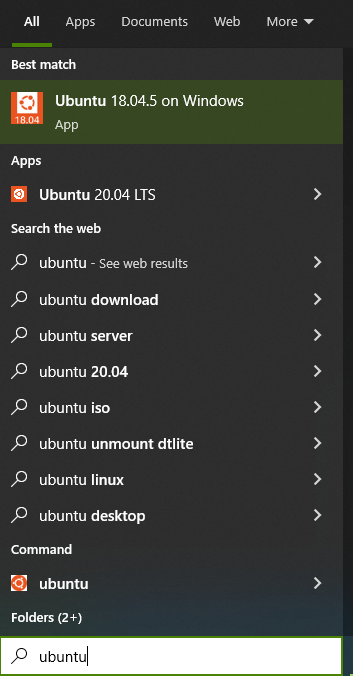
4.1 Open Ubuntu
Search for Ubuntu in the Windows taskbar and click the app icon:
4.2 Verify your installation
Run the following commands to confirm everything is working:
# Check Ubuntu version
lsb_release -a

# Check your username
whoami

# Check WSL version from PowerShell (open a separate PowerShell window)
# wsl --list --verbose
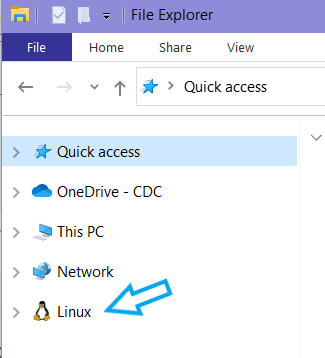
4.3 Verify Linux mount in File Explorer
Windows 11 (and updated Windows 10) should automatically mount Linux in File Explorer.
4.4 Understanding your file system
Inside WSL you have two main locations:
| Path | Description |
|---|---|
/home/<username>/ |
Your Linux home directory (fast, native Linux filesystem) |
/mnt/c/ |
Your Windows C: drive mounted inside Linux |
~/) for best performance. Access Windows files via /mnt/c/ when needed.