Deploy NND Sync
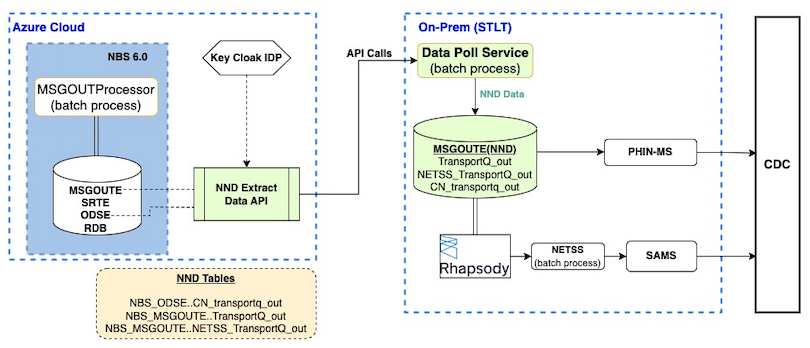
Use these instructions to deploy the Data Sync service that extracts data from the Modernized NBS cloud implementation and supports ongoing message transmission to . Complete Validate API endpoints before starting this page.
This page is part of the optional NND Service (Data Sync) section. CDC is evaluating long-term support for this service. If your STLT has a use case, contact nbs@cdc.gov.
On this page
Prerequisites
To sync data for through the Data Sync service, you need the following:
- Complete Validate API endpoints.
- client ID and client secret - Retrieve these from your Keycloak instance. In the NBS realm, navigate to Clients >
nnd-keycloak-client> Credentials > Client Secret. - Data service URL - Retrieve this from your NBS environment.
- Release materials/package - CDC provides this as a .zip file with each release.
- Install the Rhapsody engine and IDE.
- Install a database on a different machine, or repurpose an existing SQL Server database (Rhapsody should have access to it).
- Java 21 or higher
Components for NND Sync
NNDSS Data Sync service includes:
data-sync-service.jarnetss-message-processor.jar.cmdfiles (only for Windows environments).sqlfiles (to create NND Database and required objects)
Set up the Data Sync service for NNDSS
The Data Sync service files come from two places:
- Service
.jarfile. On the NEDSS-NNDSS v7.13.0 release page, under Assets, downloadv7.13.0.NEDSS.NBS.Modernized.Documentation.zip. The.jarfile is in thedata-sync/NND_SERVICE/directory. - Command (
.cmd) and SQL (.sql) scripts. These are in the NEDSS-NNDSS repository, innnd-data-poll-service/execute_script/andnnd-data-poll-service/src/main/resources/sql/.
Save the files to a secure directory with executable permissions to run the services.
Step 1: Configure command or execute script (.cmd file)
- The release materials include a configurable
.cmdscript file that runs the Data Sync service. - Replace the values for arguments in the file with your own.
- Important: Do not allow any space between the argument name and value.
- Example:
arg_name=arg_value
- Example:
Reference for arguments: README
Step 2: Build or reuse the database and database objects
- Create a separate database and tables for the new service.
- Use the provided
.sqlscripts to create the required database and tables.
Tables required in the new database:
TransportQ_outCN_transportQ_outNETSS_transportQ_out
Ensure the database is accessible from Rhapsody.
Step 3: Update connection details on Rhapsody routes
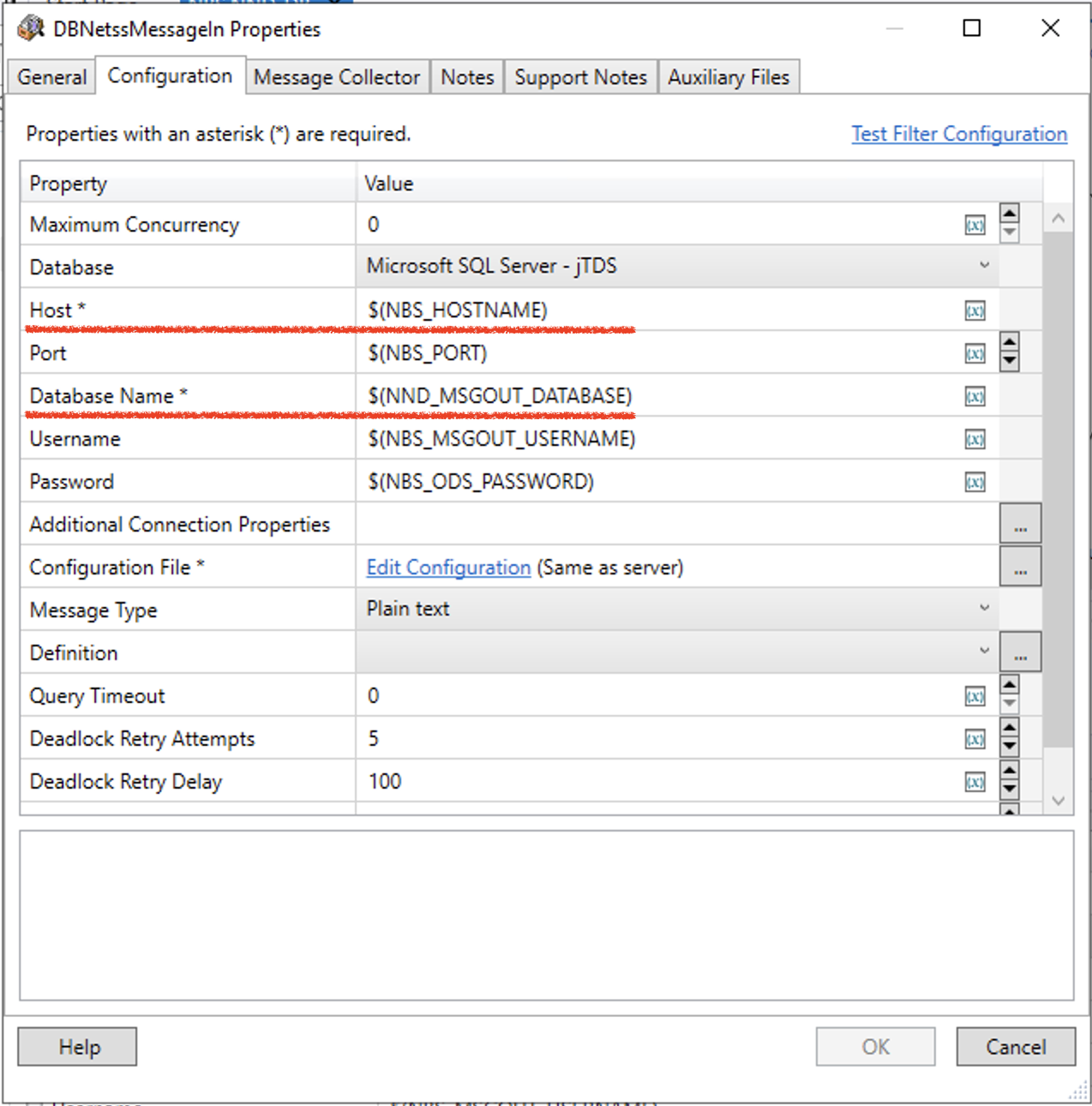
- Update only variables in the route’s database components.
- Point them to the new database and tables from the previous step.
Steps:
- Log in to the Rhapsody console.
- Open Variables Manager and confirm the route has the correct hostname and new database name.
-
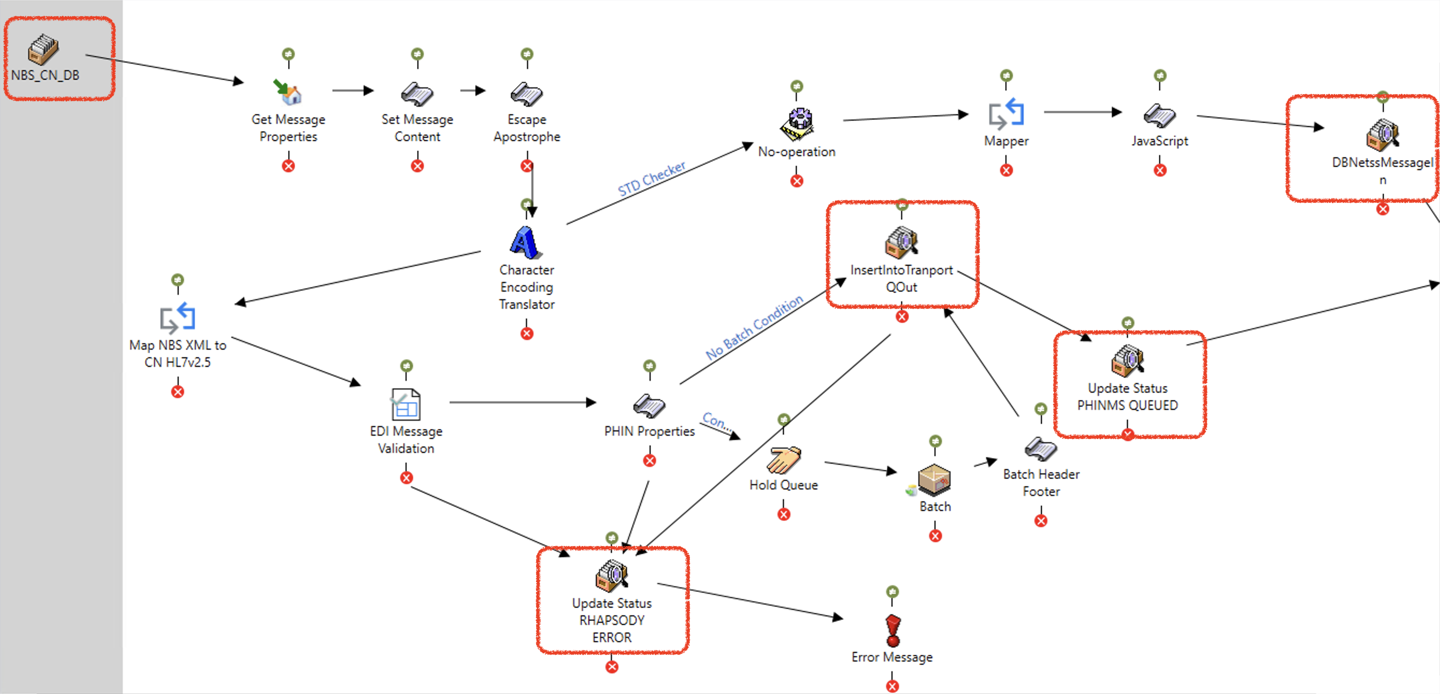
Open all database components in the route and verify they refer to the correct database variable:
List of database components to update in the Rhapsody route (highlighted in red boxes):
Step 4: Configure and verify PHINMS and SAMS
PHINMS
- Verify and update database connections for the existing setup.
SAMS
- Verify that the file drop-off location in service parameters matches the location that SAMS reads.
Next steps
Continue to Deploy Data Availability.